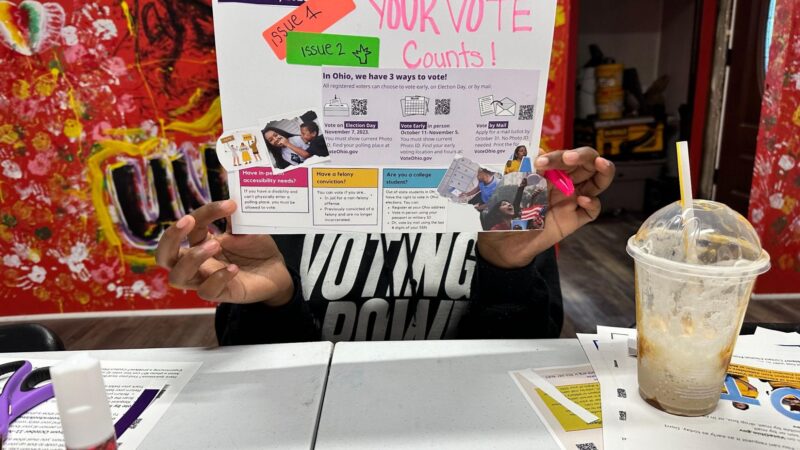
“I Voted” sticker contest
Forms and a public gallery to run an “I Voted” sticker contest

What you’ll need
- A free Airtable account
- A copy of the “I Voted” Sticker Contest template in Airtable Universe
- [Optional] A release form that authorizes you to use the artwork uploaded to your website or another filesharing service
Getting started
Create a free Airtable account
If you don’t already have a free Airtable account:
- Go to www.airtable.com and click “Sign Up for Free” in the top right corner.
- Create a free account with your work email address.
- Airtable will walk you through some “get to know Airtable” steps. It doesn’t matter what you fill in here, the template contains all the tables you need.
- When your account is created, you’ll have a popup box asking you to sign up for a 14-day Pro trial. You don’t need this to run an “I Voted” sticker contest, so you can just click anywhere outside of the box and it will go away.
Copying the template into your Airtable workspace
- Open the “I Voted” Sticker Contest template in Airtable Universe. Click Explore the base then Copy base to make a copy of our template.
- Select the workspace you want to copy the base into. By default this is your personal workspace.
- Your copy of the template will open automatically in Airtable. Close the introductory chat window that opens by clicking the « button.
- When you’re done exploring the base, you can delete the sample data.
- Click on the Submissions table.
- Click the empty check box in the Name & Title header to select all rows.
- Right-click on any row and select Delete all selected submissions from the popup menu that appears.
- Click on the Votes tab and repeat the previous two steps to delete the sample votes.
Using the tool
Setting up and sharing the submission form
- Click on Forms in the top navigation bar.
- Ensure you have the Submit your “I Voted” sticker design form selected. If you don’t see a list of forms on the left, you can click the icon with the three horizontal lines to open up the list.
- Click on “ADD INFORMATION ABOUT RULES AND DEADLINES HERE” under the title and replace it with any important information about your contest rules and deadlines.
- Click on “ADD YOUR DESIGN REQUIREMENTS HERE” under the Artwork heading and replace it with any requirements your printing service has for uploaded images.
- If you are requiring participants to also sign a release form, you can update the helper text under the Release form label to include a link. If you are not, you can click anywhere to the right of that label to select the whole field and press Delete to remove the field from the form.
- Click Publish in the upper right corner to save any changes you’ve made.
- Click the Share form in the upper right corner, make sure that Anyone on the web is selected, and click Copy link to copy the form’s URL to your clipboard. You can now add that link to your website, promotional emails, etc.
Setting up and sharing the finalists and voting form
Select your finalists
- Click on Data in the top navigation bar.
- Click on the Submissions table.
- Find the Finalist field in the grid. Check any submissions you want to be included in the gallery and on the voting form. If you want all submissions to be included, simply check them all.
Set up the voting form
- Click on Forms in the top navigation bar.
- Select the Vote for your favorite sticker form from the list on the left. If you don’t see a list of forms on the left, you can click the icon with the three horizontal lines to open up the list.
- Click the Share form in the upper right corner, make sure that Anyone on the web is selected, and click Copy link to copy the form’s URL to your clipboard. You can now add that link to your website, promotional emails, etc.
Share the gallery of finalists
There are two ways to share a gallery of the submitted sticker designs: a standalone URL or embedding the gallery into your website.
Standalone URL
- Click on Interfaces in the top navigation bar.
- Click on the Vote for your favorite! button.
- Paste the public URL for your voting form into the Destination field in the right-hand sidebar.
- Click the Publish button in the upper right corner to save your change.
- Click the Share interface button in the upper right corner.
- Click the Share to web tab in the popup menu that appears.
- Click the Copy link button next to the URL to copy the gallery’s URL to your clipboard. You can now add that link to your website, promotional emails, etc.
Embedding a gallery into your website
- Click on Data in the top navigation bar.
- Click on the Submissions table.
- Select the Finalists view from the list on the left.
- Click the Share view button in the upper right.
- Click on Embed this view in the popup menu that appears.
- Click on the Copy embed code button and add that code to your website or provide it to your website administrator for help embedding it on a page of your choice.
Check your results
- When voting is complete, click on Data in the top navigation bar.
- Click on the Submissions table.
- Select the Results view from the list on the left. There you’ll find a list of finalists sorted by their vote count (descending).
- You may want to scan the data in the Votes table for duplicate emails or phony phone numbers. The submission form does not actively prevent duplicate submissions, though the Vote Count column does count only unique phone numbers in its total.
Customizing for your office
Any tips for customizing this resource for my office?
- The submission form is highly customizable. For example, if you’re running a competition for students only you can add a School field to capture that information and share it in the gallery. You can also tweak the labels, add helper text, or change which fields are required by directly editing them or adjusting the settings in the right hand sidebar.
- If you want an automatic email notification to confirm submissions, you can add an automation to do that for you.
How do I know if this resource is helping?
This resource should save you time you might’ve had to spend setting up forms, copying data between spreadsheets and inboxes, and building a gallery of finalists on your website.
Which Standards of Excellence does this resource support?
- Communications
Which Values of Excellence does this resource support? Why?
Values for the U.S. Alliance for Election Excellence define our shared vision for the way election departments across the country can aspire to excellence. These values help us navigate the challenges of delivering successful elections and maintaining our healthy democracy.
Alliance values are nonpartisan and designed by local election officials, designers, technologists and other experts to support local election departments.
You may find this tool especially helpful for this Value:
- Voter-centricity. Inviting locals to design an “I Voted” sticker builds community pride and helps connect current and future voters to the democratic process.
To learn more about the Values for Election Excellence, and to see the full list, visit the Alliance website.
Sharing feedbackSharing feedback
How was this resource developed?
This resource has been put into practice by at least one jurisdiction. Share your experience with this resource and improve it for your peers by reaching out to support@ElectionExcellence.org.
How do I stay in touch?
- For the latest news, resources, and more, sign up for our email list.
- Have a specific idea, piece of feedback, or question? Send an email to support@ElectionExcellence.org